How it works · Student handoff
QR code. Four digits. Under a minute.
Pearsight runs in the browser on whatever device your student already does homework on. Pairing is a one-time handoff — open the QR on your phone, scan it from theirs, done. No app store visit. No new password to manage.
The QR code path
If your student is in the room.
From your Pearsight settings, tap “Pair a student device” and pick which kid this device belongs to. Pearsight shows a QR code on your phone or laptop. Point the device camera at it, tap the link that pops up, and the device is logged in to that student’s view.
The QR code expires in five minutes. If you don’t finish the handoff in time, generate a new one — no harm done.
The four-digit code path
If they’re away — at grandma’s, on a trip.
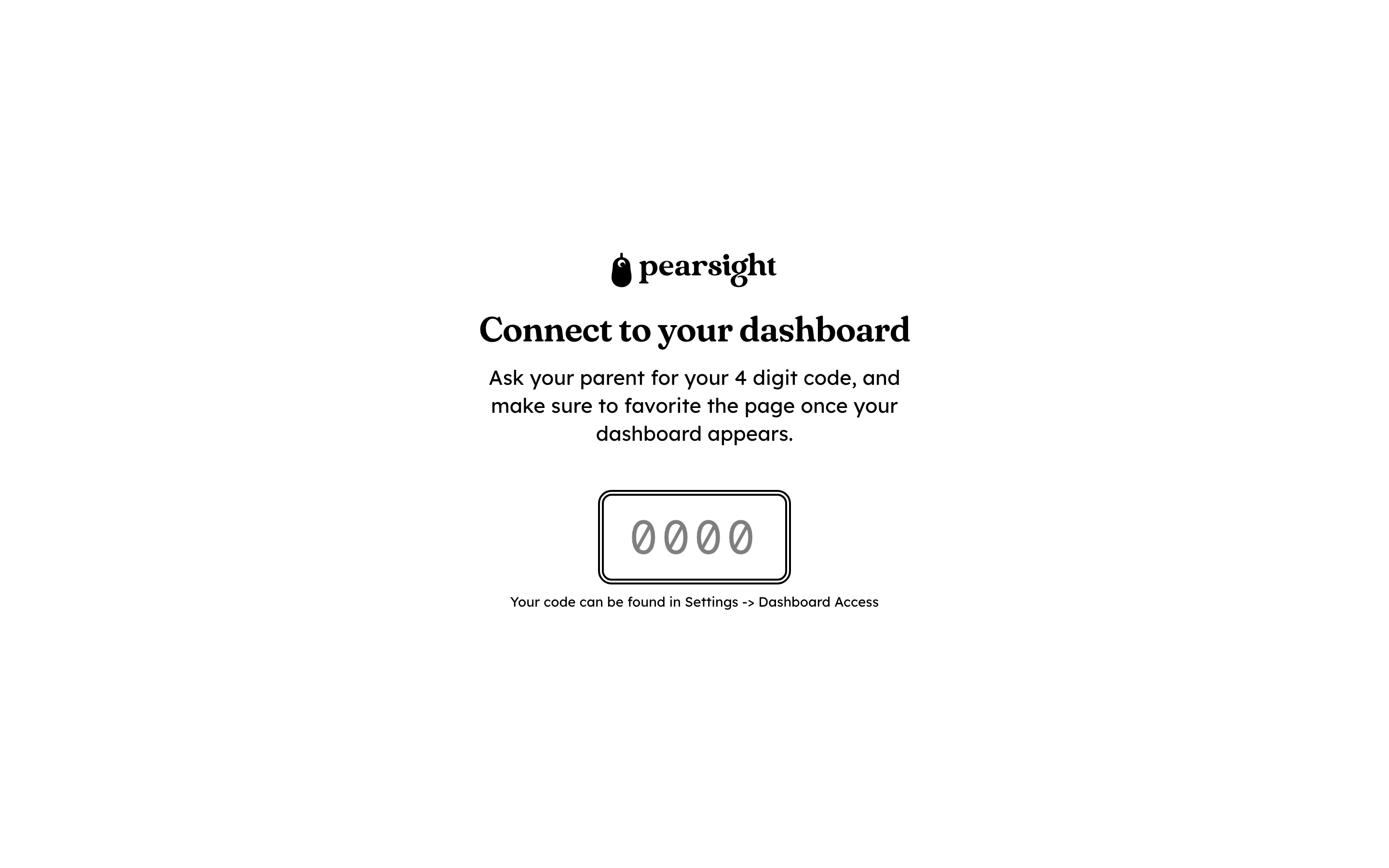
Instead of a QR, request a four-digit short code. Read it to your student over the phone. They type it into link.pearsight.com from their device. Same outcome, same pared-down view, no camera needed.
Like the QR, the code expires after a few minutes. Pairing only ever happens with your active permission.
What the device sees
One student’s view. Nothing more.
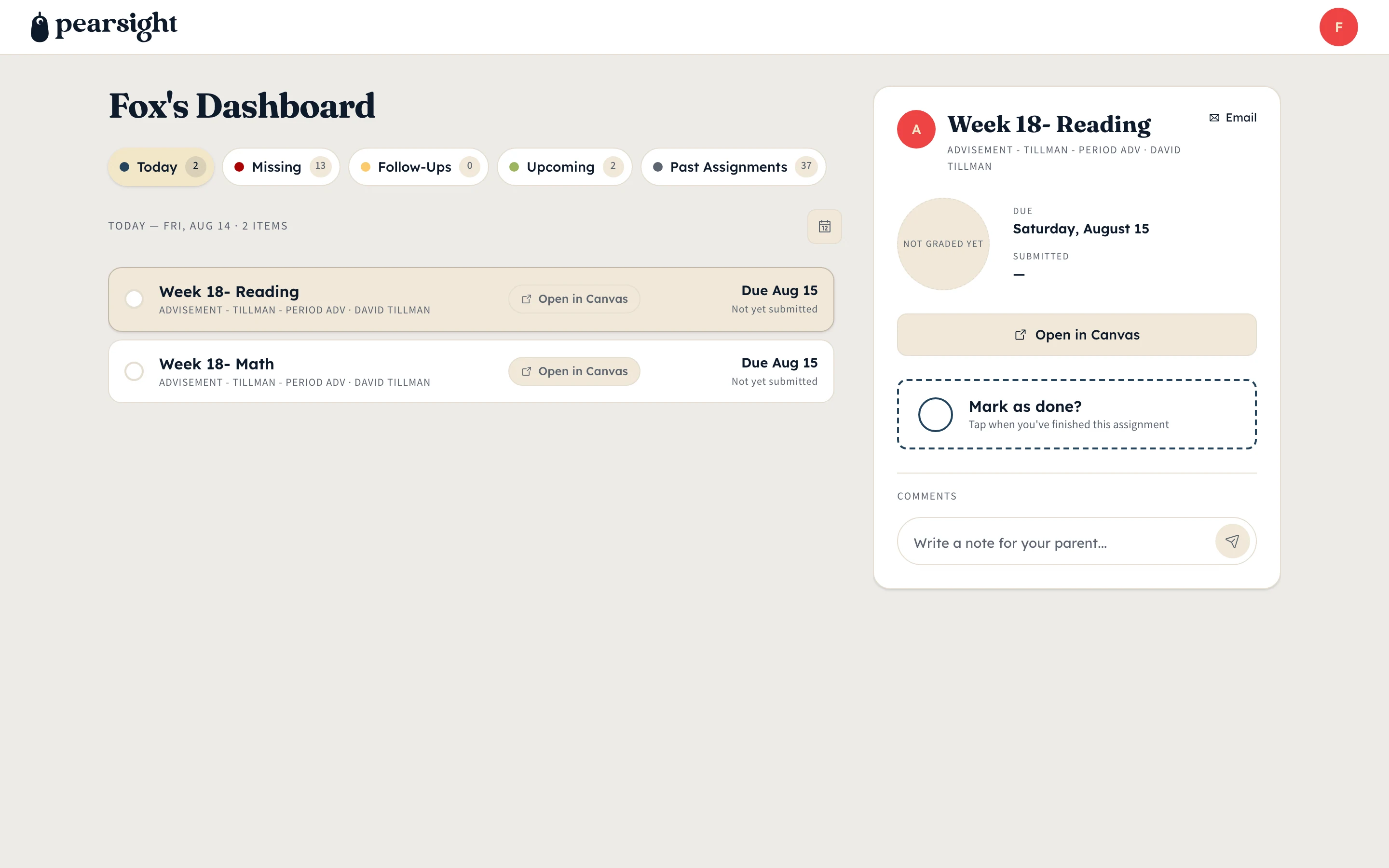
The paired device runs in a pared-down student dashboard: today’s assignments for that one kid, their tap-to-done area, their comment thread back to you. No parent dashboard, no other siblings, no billing.
Lost a device? Unpair it from your settings. The student view logs out on its next request, and your data stays put.
More: the student view · status workflow · back to overview